After login, the Azure Home page is displayed in the Azure Portal:
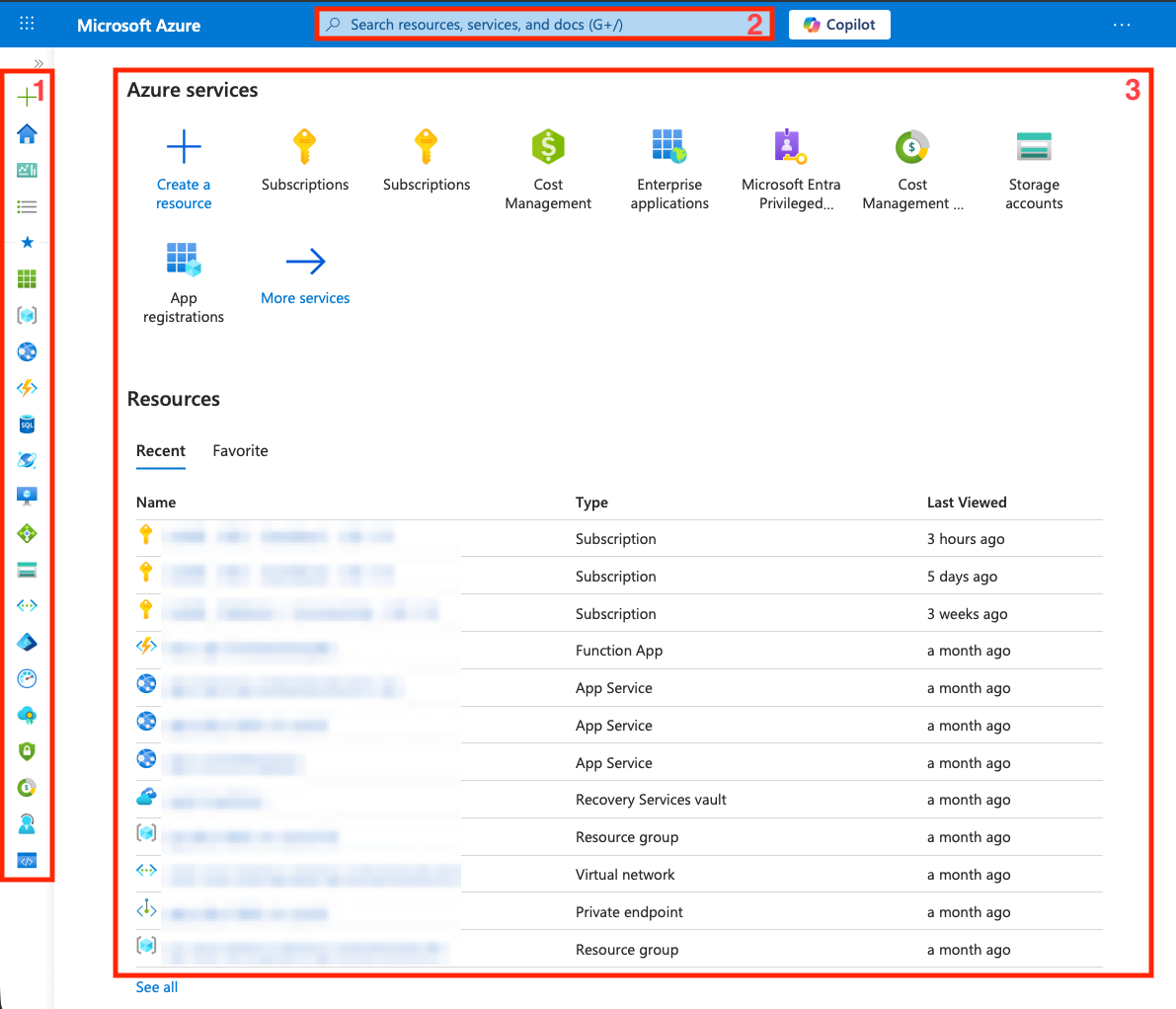
The Azure Portal is divided into the following main areas:
- Collapsible portal navigation with a list of Azure Services. This menu is configurable and displays the favorited services.
- Global search, through which services, resources, and documentation can be searched
- Main area for displaying content related to services and resources
Terminology
The following section explains the most important terms of the Azure platform, which are required for understanding the further explanations.
- Subscription: A Subscription forms the top-level organizational unit in Azure and serves for resource management and billing.
- Resource Group: Resource Groups enable the logical grouping of related resources within a Subscription.
- Service: The services offered by Azure are referred to as Services. For example, Azure Virtual Machines represents such a Service.
- Resource: When provisioning a Service, a Resource is created, which represents the concrete instance of the service.
Navigation to the Subscription
The details of a Subscription can be accessed in various ways:
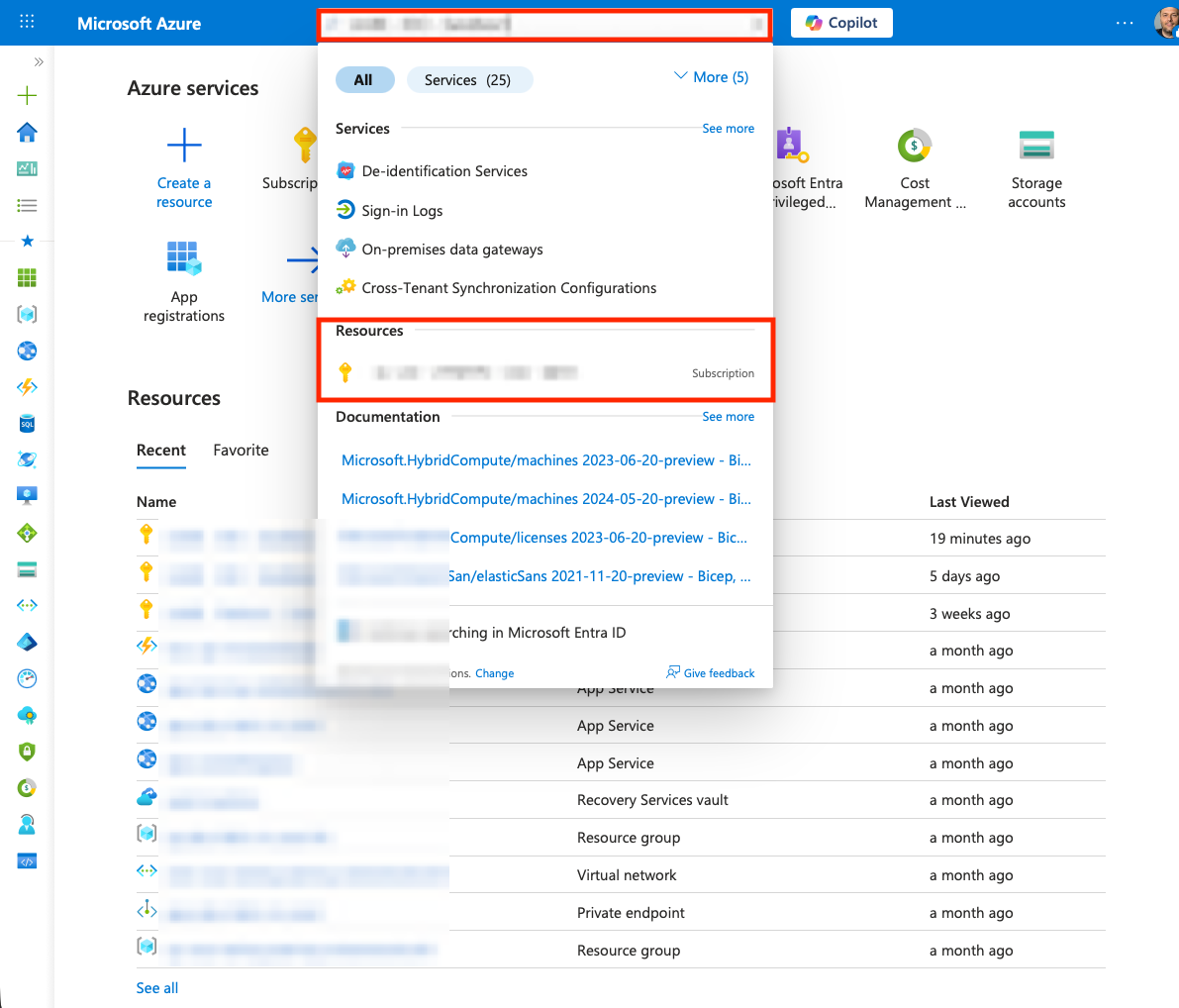
- The name of the Subscription can be entered in the global search.
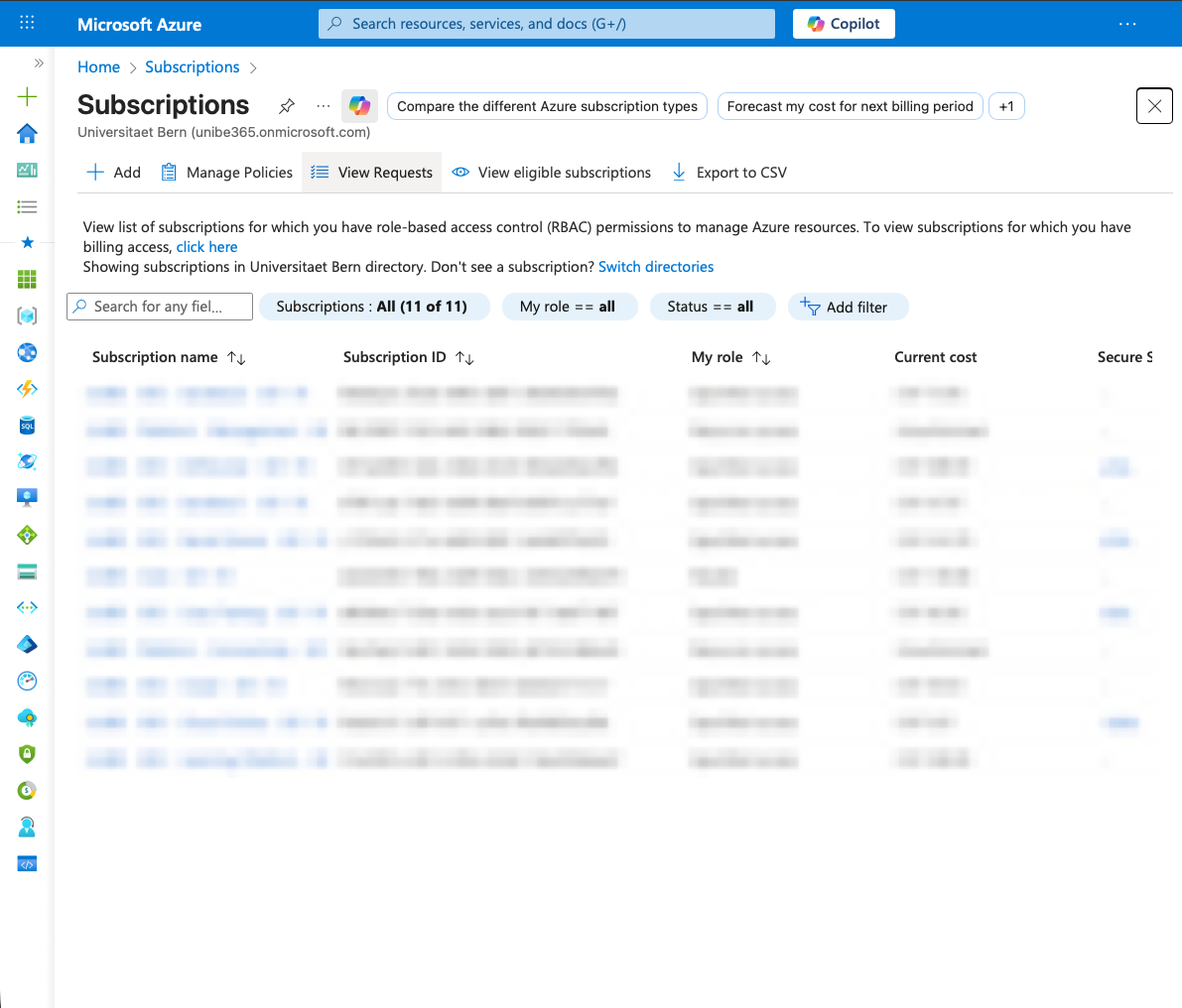
- The desired Subscription can be selected from the list of all Subscriptions.
Directly to the Subscription via Global Search
The name of the Subscription is entered in the global search text field of the Azure Portal. The Subscription is then displayed in the search suggestions under Resources.
Via the Subscription Service
The global search bar can be used to navigate to a Service in Azure.
Subscription is entered as the search term in the global search text field of the Azure Portal. The Service named Subscriptions is displayed as a result.
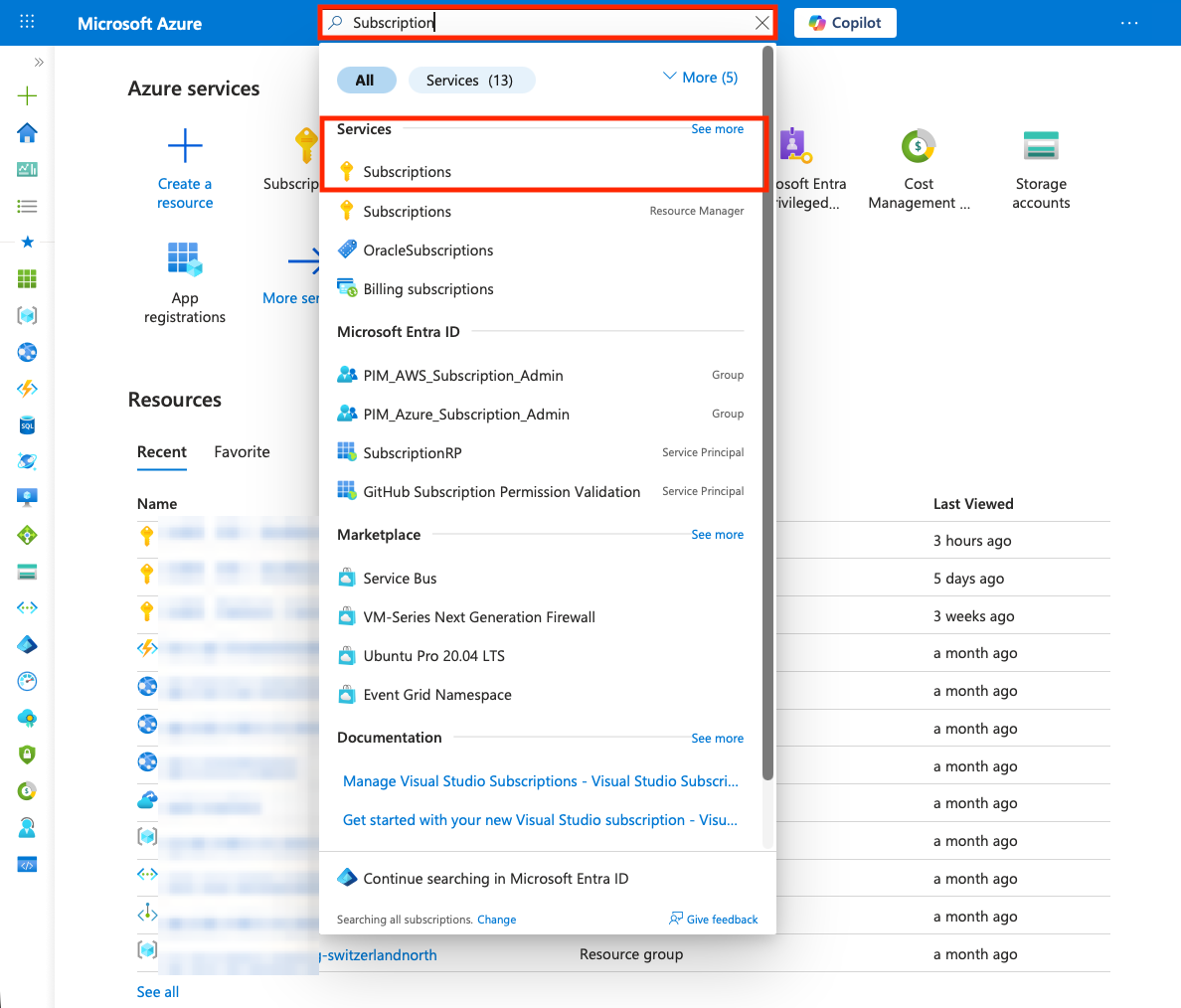
By selecting the search result, the available Subscriptions are displayed as a list.
Details of the Subscription
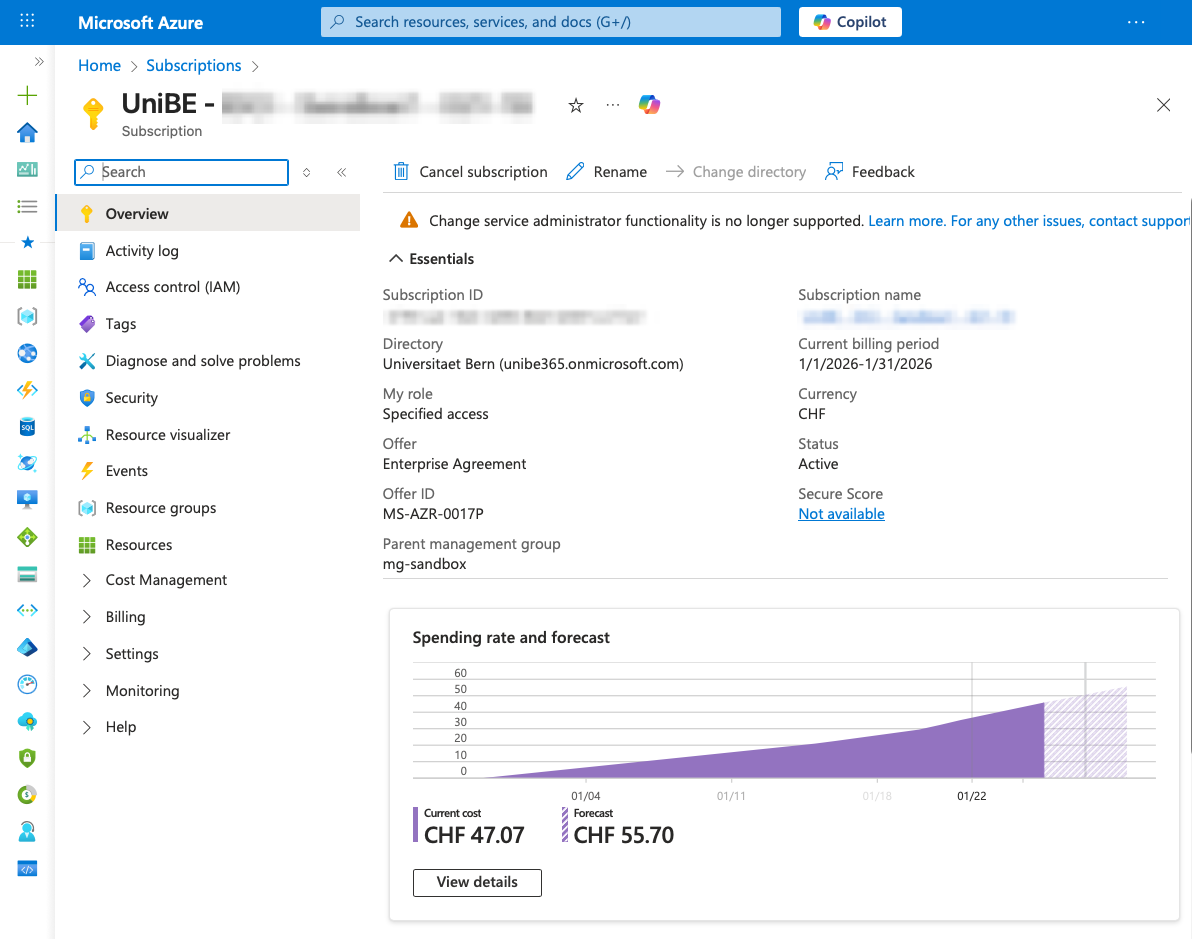
The detail view of the Subscription displays various information:
- The metadata of the Subscription is presented in tabular form. Particularly noteworthy is the
Subscription ID, which represents the internally used unique identifier of a Subscription. TheTenant IDdenotes the unique identifier of the Azure Tenant of the University of Bern. - The current costs of the resources in the Subscription are displayed. Additionally, a forecast of the expected costs until the end of the month is provided.
In the navigation menu of the Subscription, there are two important items:
Resource groupsResources
Through these navigation items, the corresponding Resources within the Subscription are displayed. The following diagram illustrates this tree structure:
architecture-beta
    group azure[Azure]
    group subz[Subscriptions] in azure
    group rgz[Resource Groups] in azure
    group rz[Resources] in azure

    service sub(azure:subscriptions) in subz
    service rg(azure:resource-groups) in rgz
    service r1(azure:key-vaults) in rz
    service r2(azure:virtual-machine) in rz
    service r3(azure:virtual-networks) in rz

    sub{group}:B --> T:rg{group}
    rg{group}:B --> T:r3{group}

    r3:L -- R:r2
    r3:R -- L:r1
The resources of a Subscription are thus bundled into one or more resource groups. It makes sense to group resources that logically belong together and have the same lifecycle into a single resource group. Access permissions can also be set via resource groups.
Resources can be found analogously to the Subscription in the following ways:
- The resource name is entered in the global search.
- The corresponding Service is searched in the global search and the resource is selected from the displayed list.
Next Steps
When ordering a Subscription, a standard budget is defined. This should first be adjusted to your own needs. To do this, the Owner role must first be activated. Further information on permissions can be found in the article Roles and Permissions.