At a Glance
Goals
- You are able to create a budget for a Resource Group.
Prerequisites
- Access to a Subscription is already available.
- The appropriate role that allows creating a budget has been activated.
References
Create a Budget
As with many Azure resources, a budget is actually a special resource. It can be restricted to a Subscription, a Resource Group, or individual resources. In this example, a budget is created for a Resource Group.
-
Log in to the Portal.
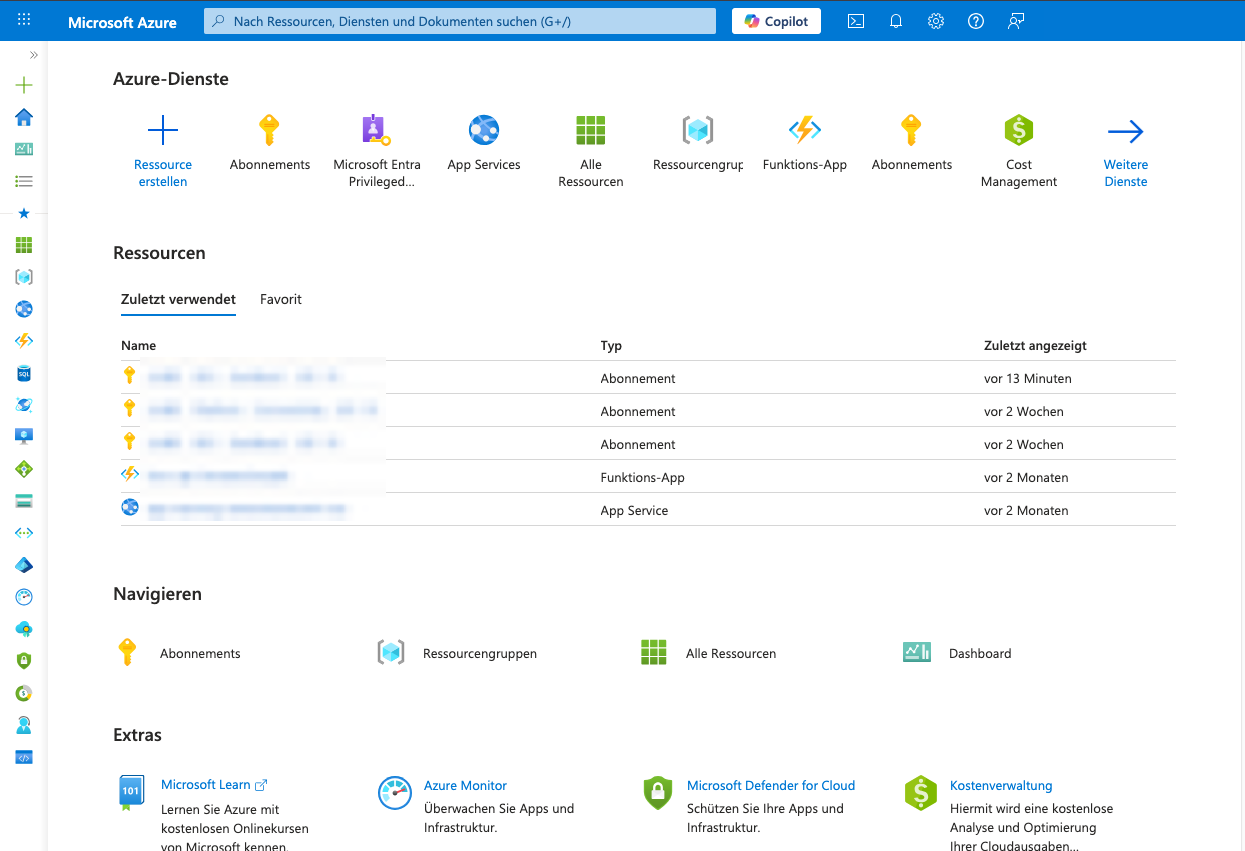
-
Navigate to the Subscription.
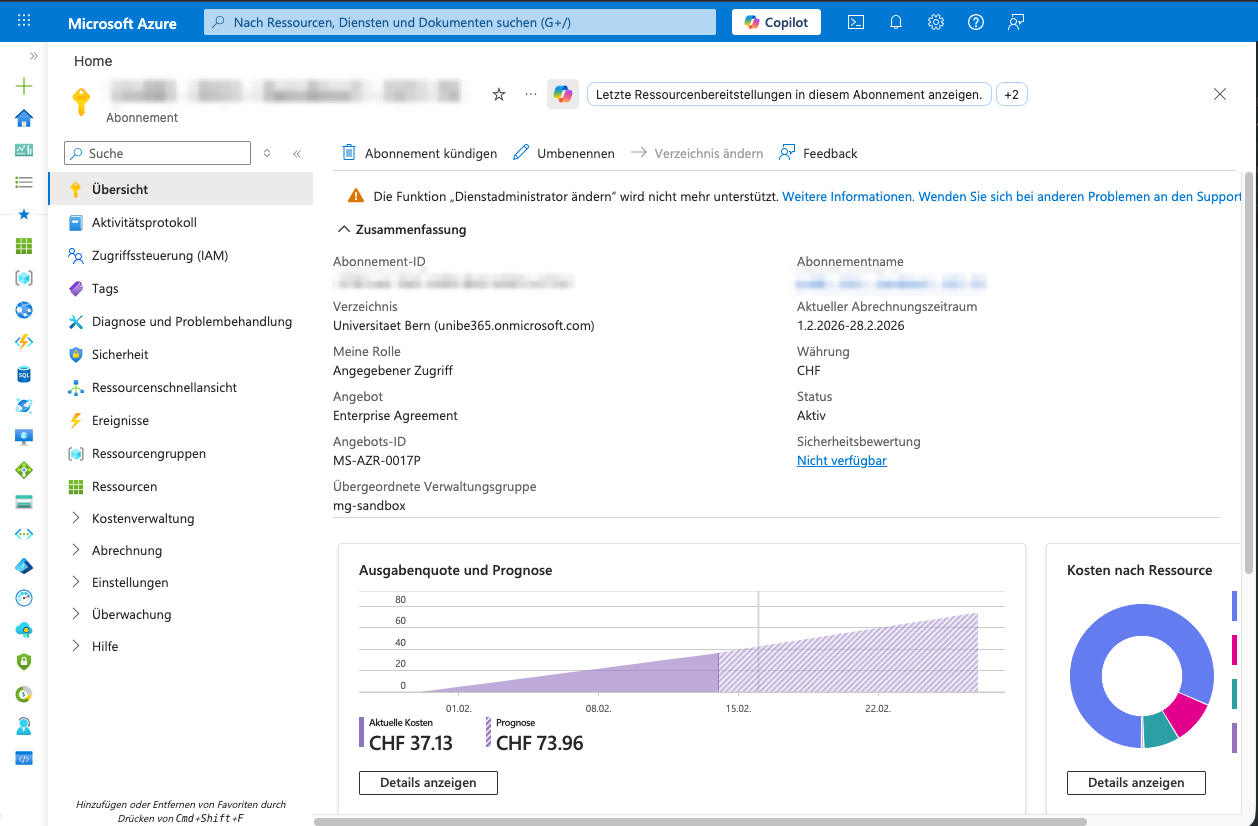
-
Create a new Resource Group named
rg-test-budget.-
In the navigation, click on
Resource groups.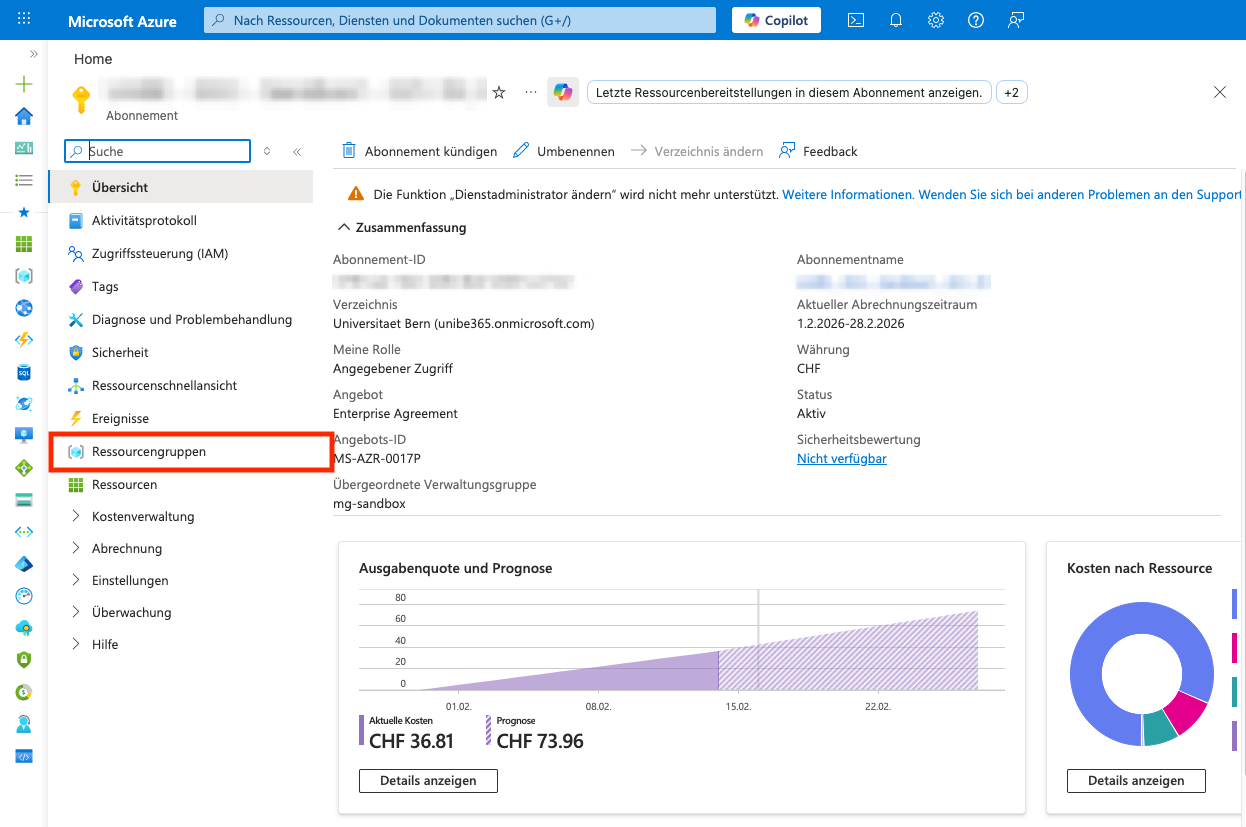
-
In the top menu, click
Create.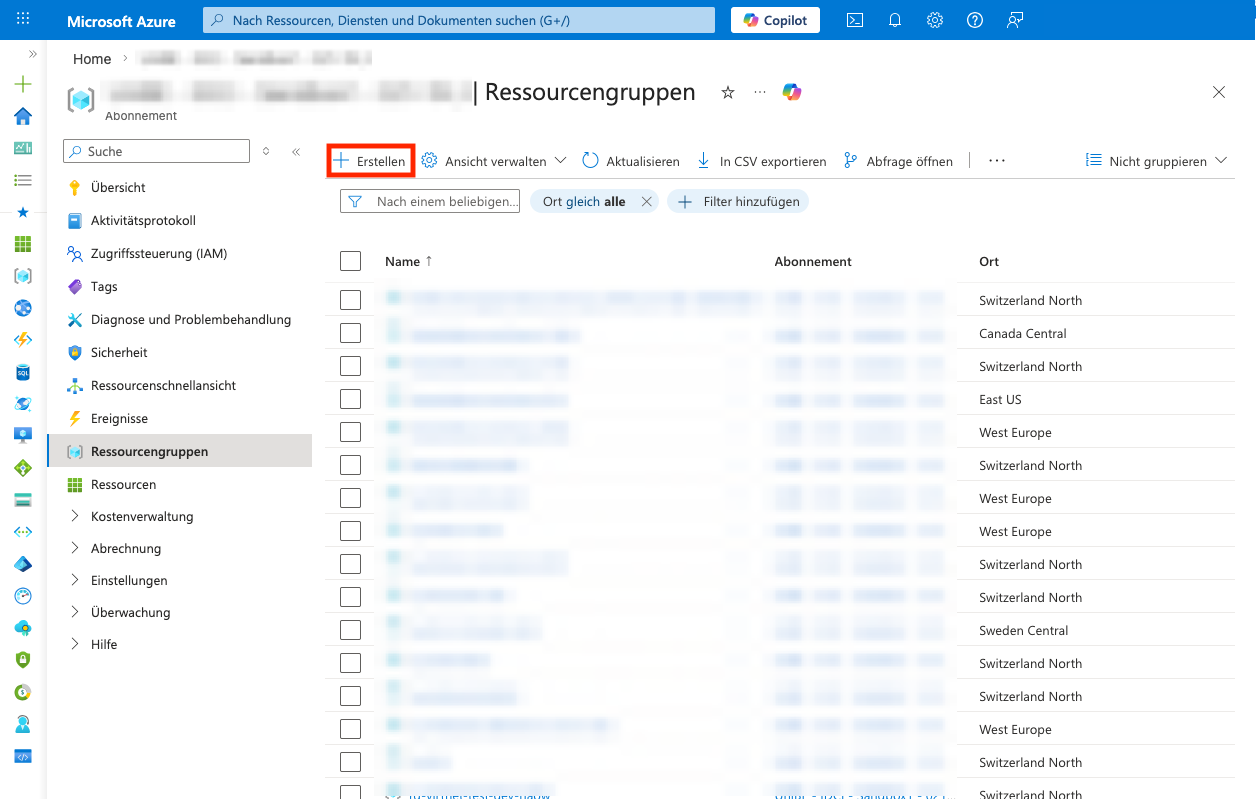
-
Enter
rg-test-budgetas theResource Group Nameand select(Europe) Switzerland Northas the region. Then, clickReview + Create.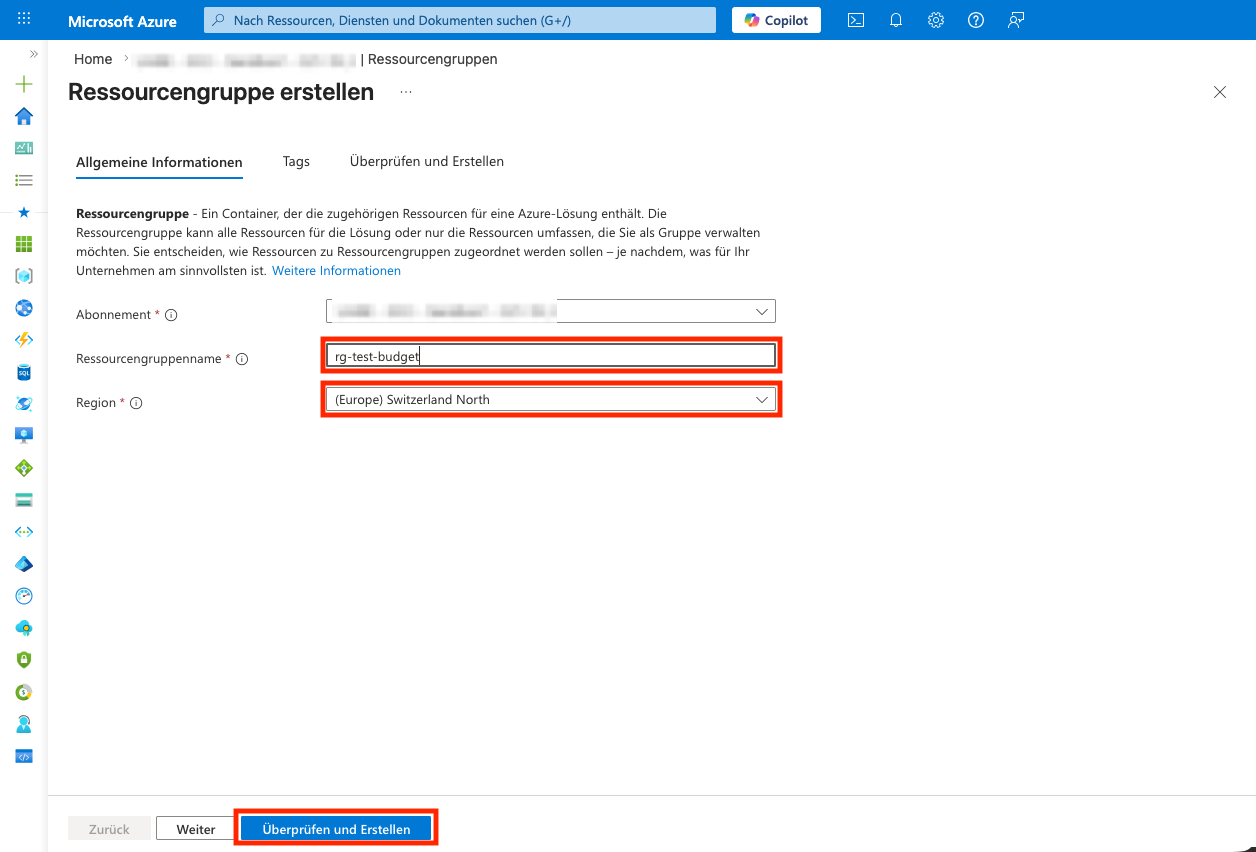
-
Click
Create.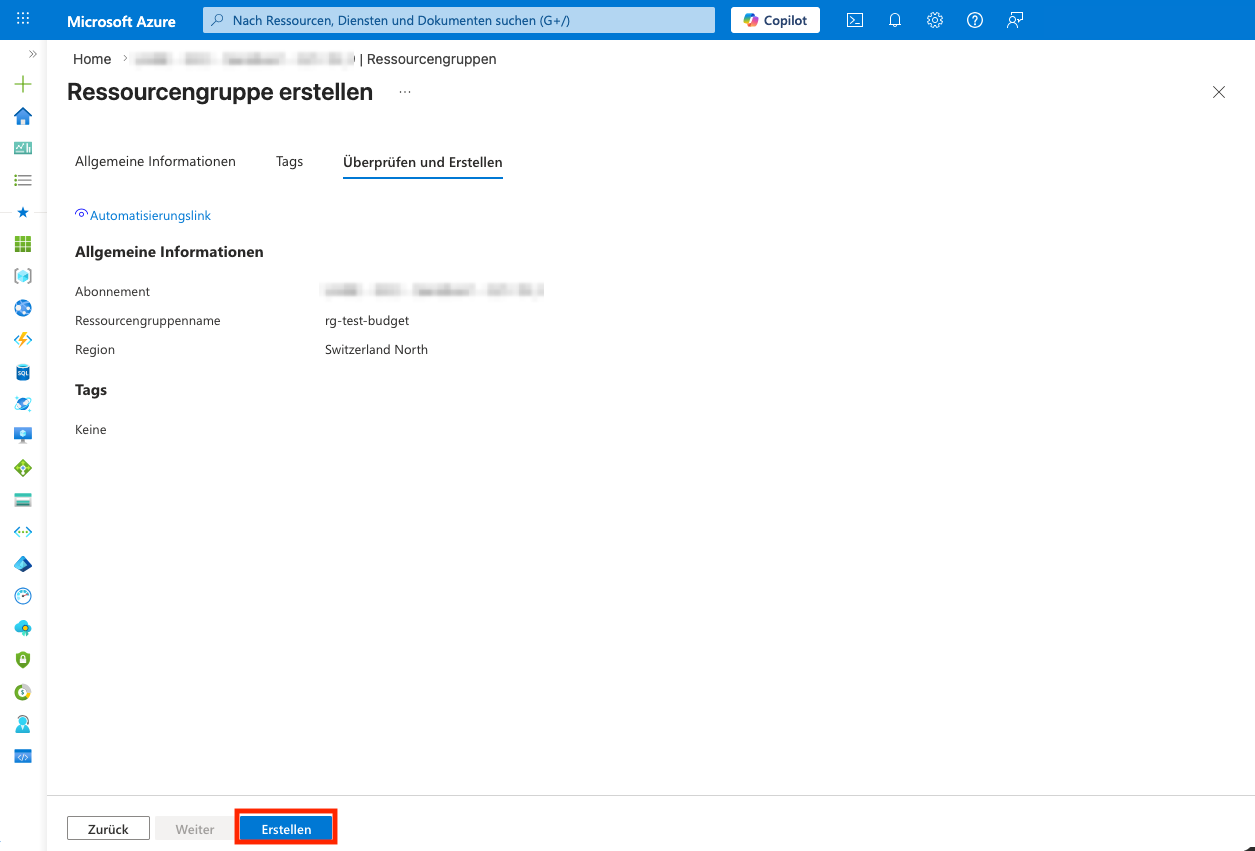
-
-
In the navigation, click on
Resource groupsand select the Resource Grouprg-test-budget.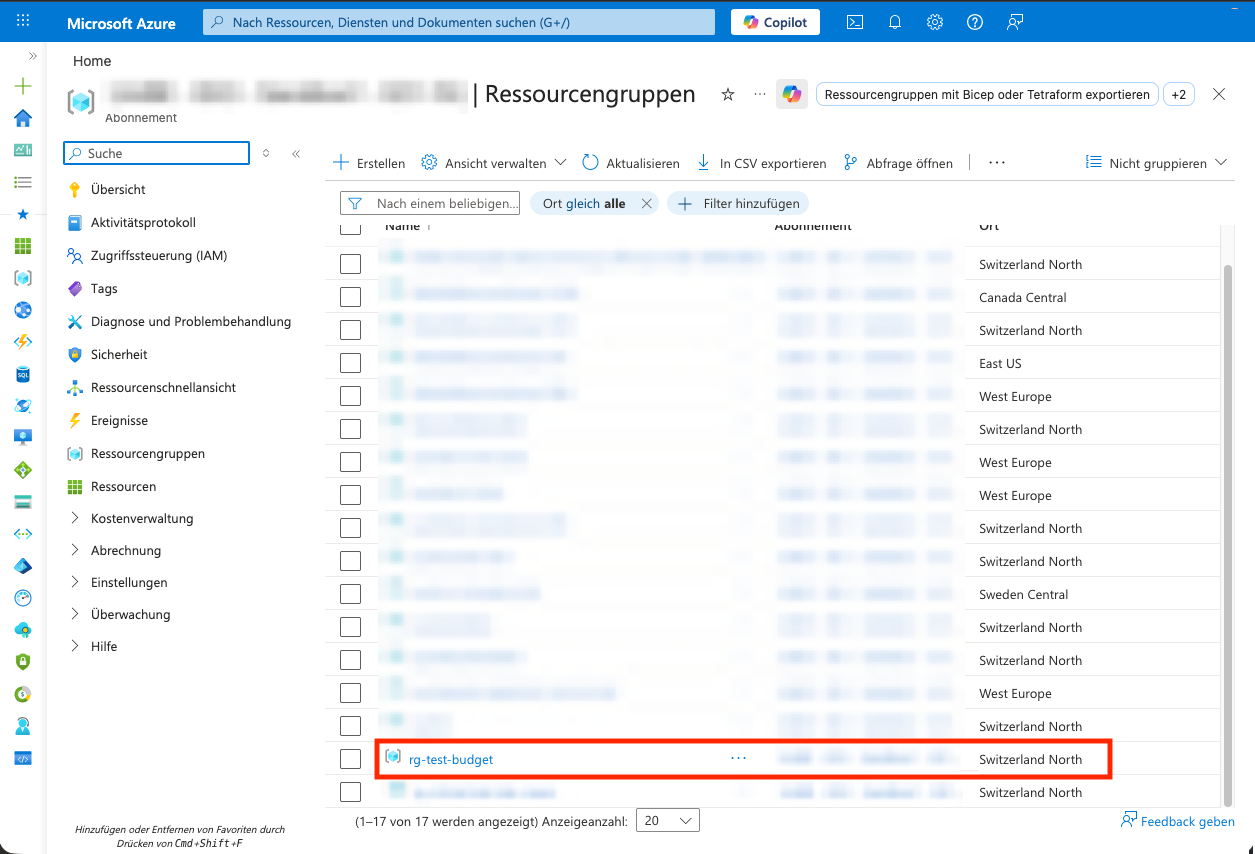
-
In the navigation under
Cost Management, click onBudgets.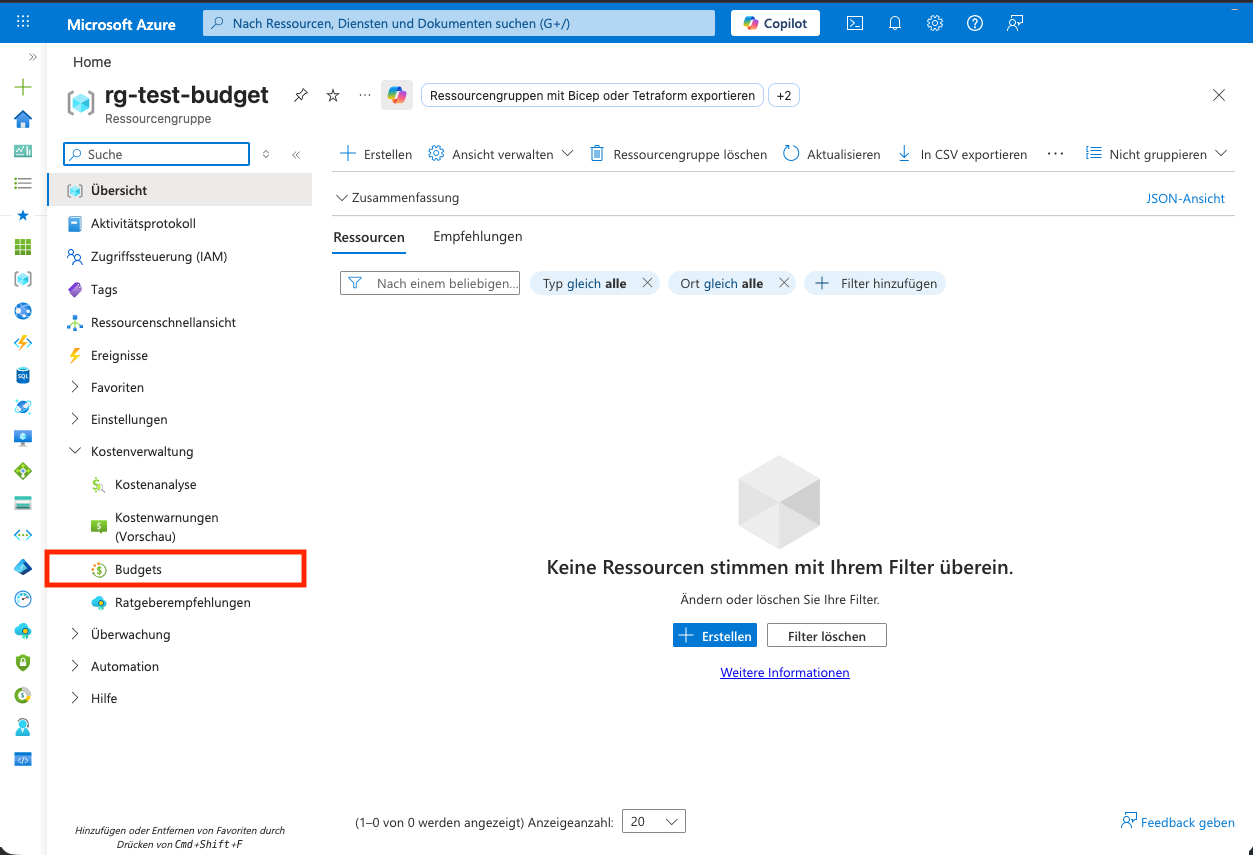
-
In the top menu, click
Add.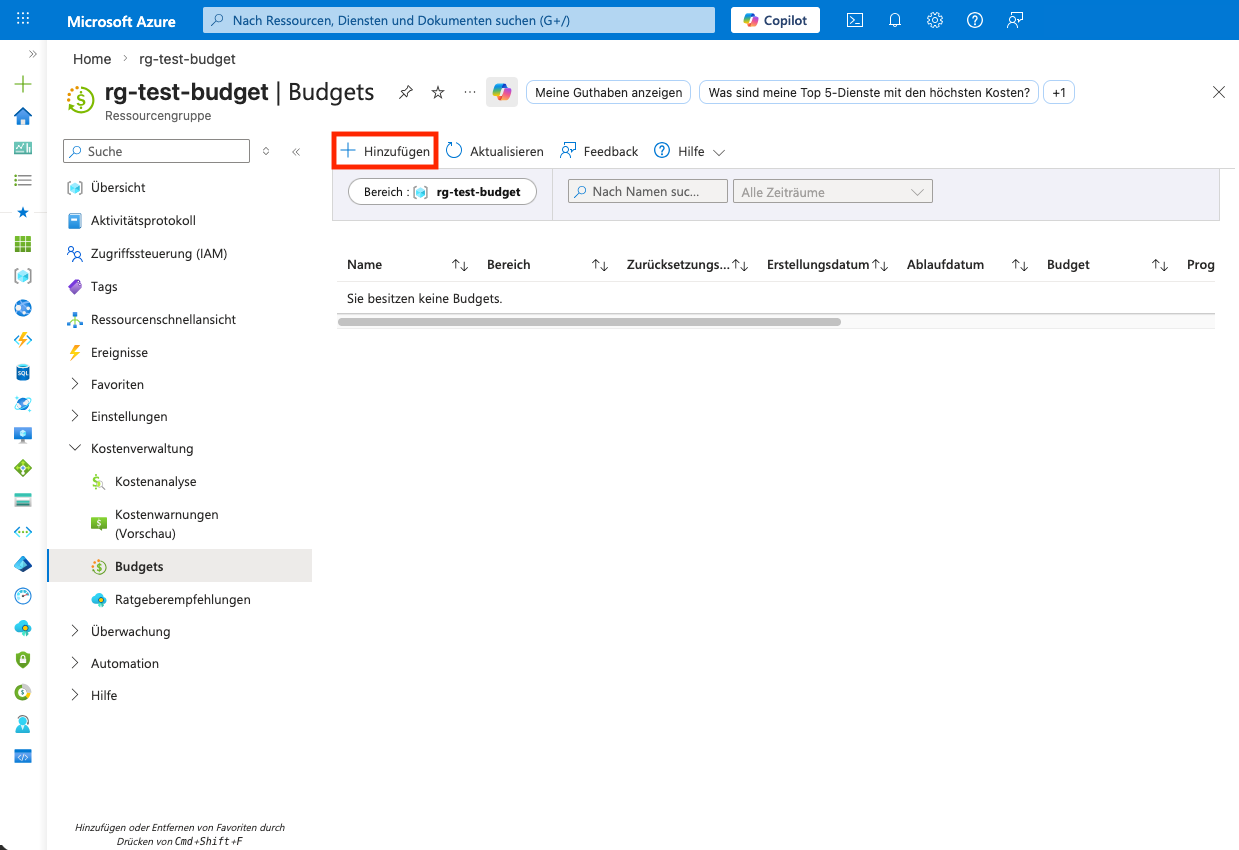
-
Configure the budget in the new window.
-
Under
Budget Scoping, the newly created Resource Grouprg-test-budgetshould be selected. This can be left as is. UnderBudget Details, the exact rules can be set (e.g., when the budget resets). Enterbudget-testas the name. UnderBudget Amount, the budget limit can be set. Enter10as the amount. ClickNext.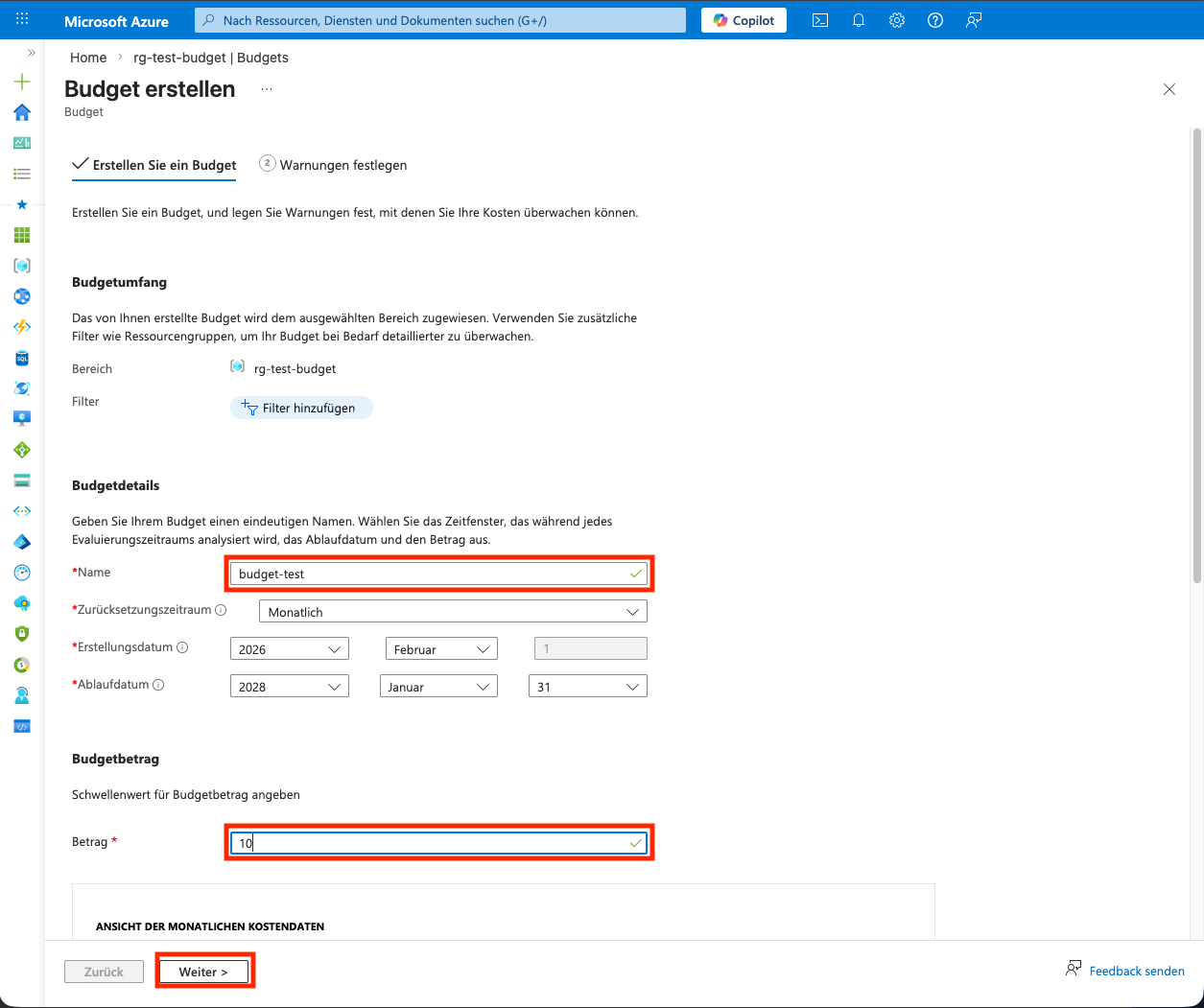
-
Under
Alert conditions, selectActualas theTypeand enter80as% of budget. A new line should appear below. Here, selectForecastedas theTypeand enter120as% of budget. UnderAlert recipients, the email address can be entered directly. ClickCreateto finish.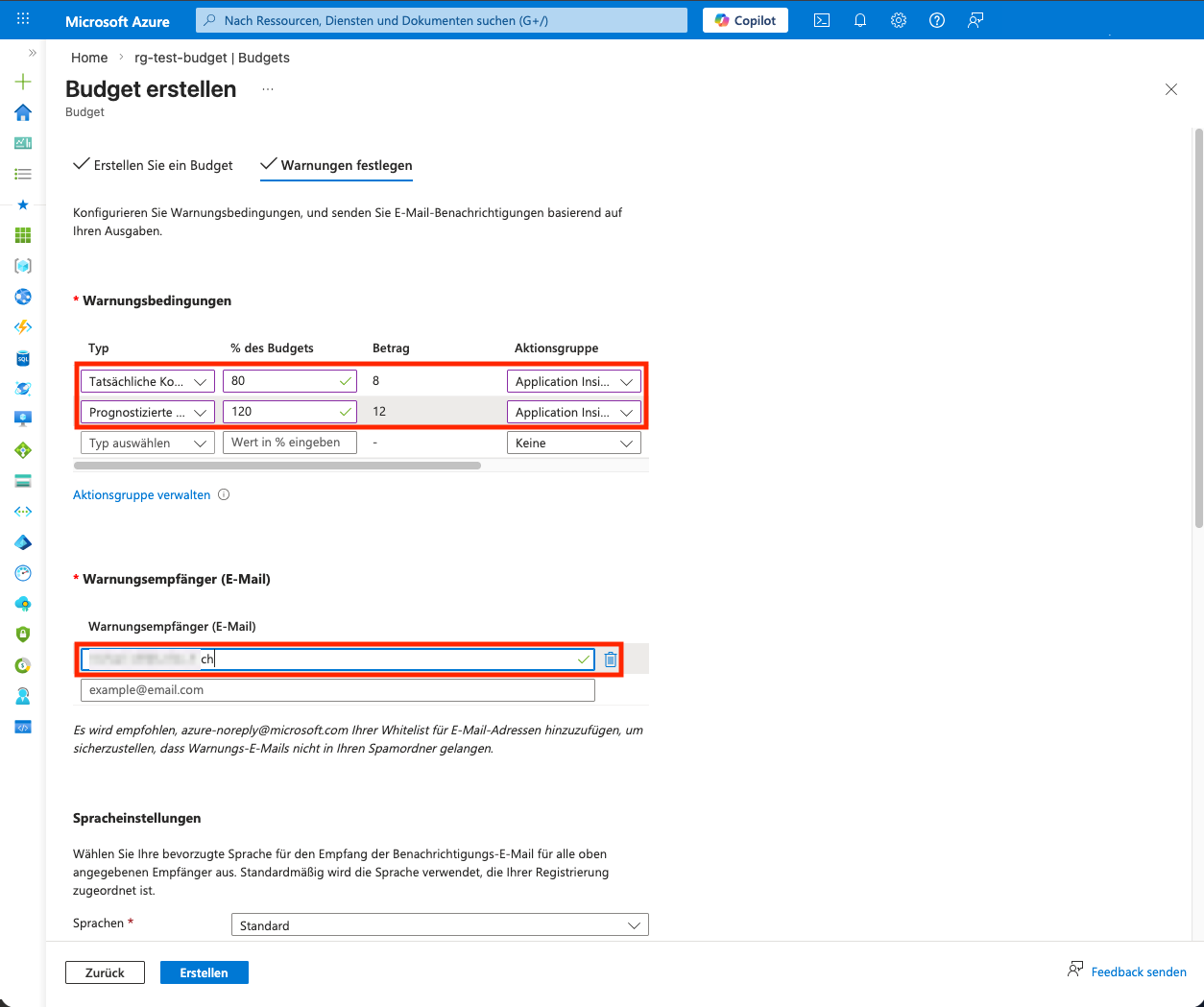
-