At a Glance
Goals
- You will learn the basics of PIM.
- You can request a higher role via PIM.
Prerequisites
- You are authorized to request a PIM group.
References
Note
This guide was created with the language setting set to English. Therefore, the screenshots shown may differ from your device if you have a different language set.
PIM
PIM allows you to activate elevated privileges independently. This behavior follows common security standards. By default, you work with the least privileges and increase them only when needed.
In Azure, there are two types of PIM:
-
PIM Enabled Groups
This type works by assigning the user to an Entra group for a certain period. Only IT services can administer PIM Enabled Groups.
-
PIM for Azure Roles
This type assigns elevated privileges to a user for a certain period.
Both types of PIM ultimately have the same result.
Important
The IT services assign the Unibe-Subscription-Owner (mg-unibe) role via PIM Enabled Groups.
Activating PIM Enabled Groups
-
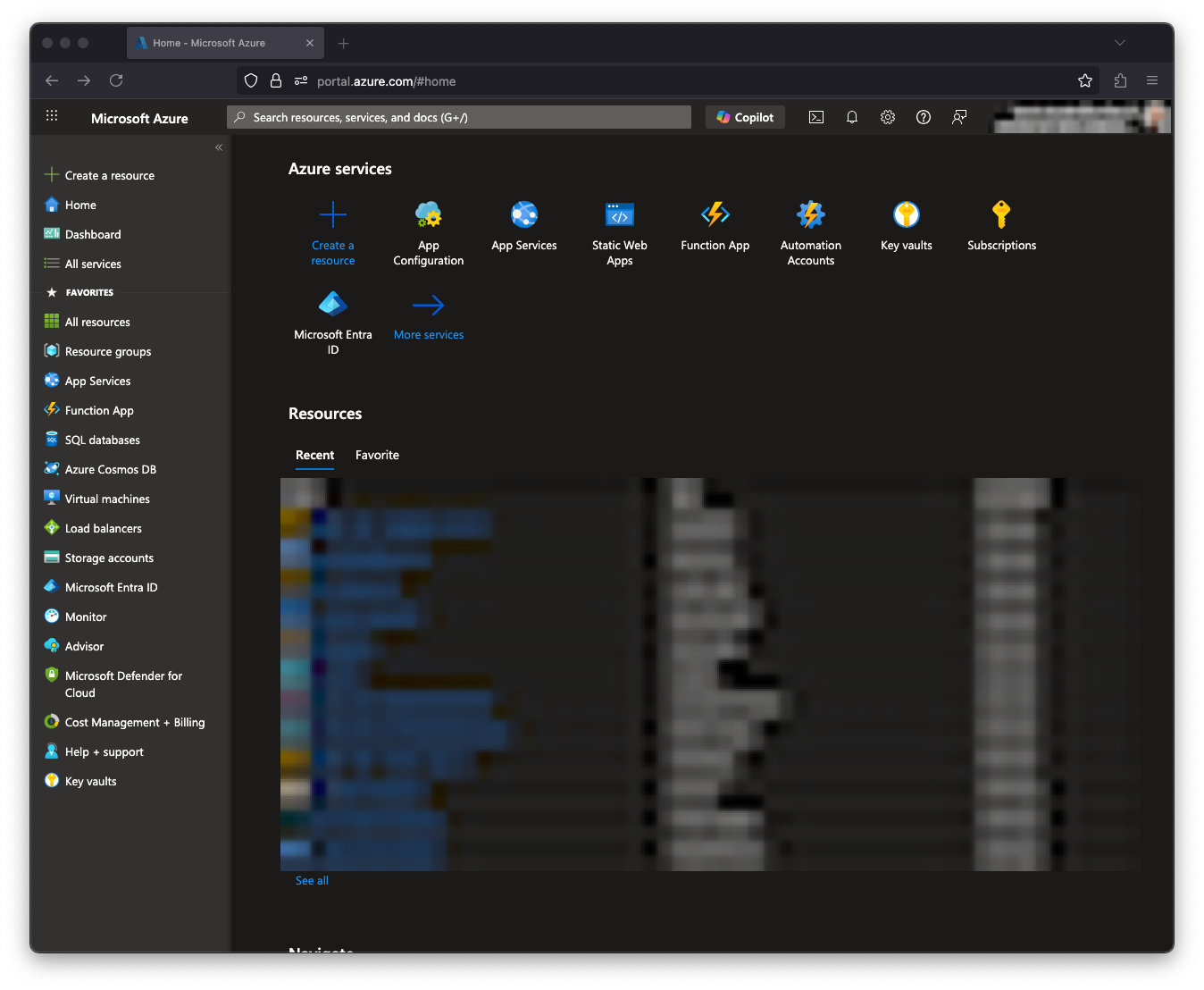
Log in to the Portal.
-
Navigate to the
PIMmodule. EnterPIMin the search bar and click the search resultMicrosoft Entra Privileged Identity Management.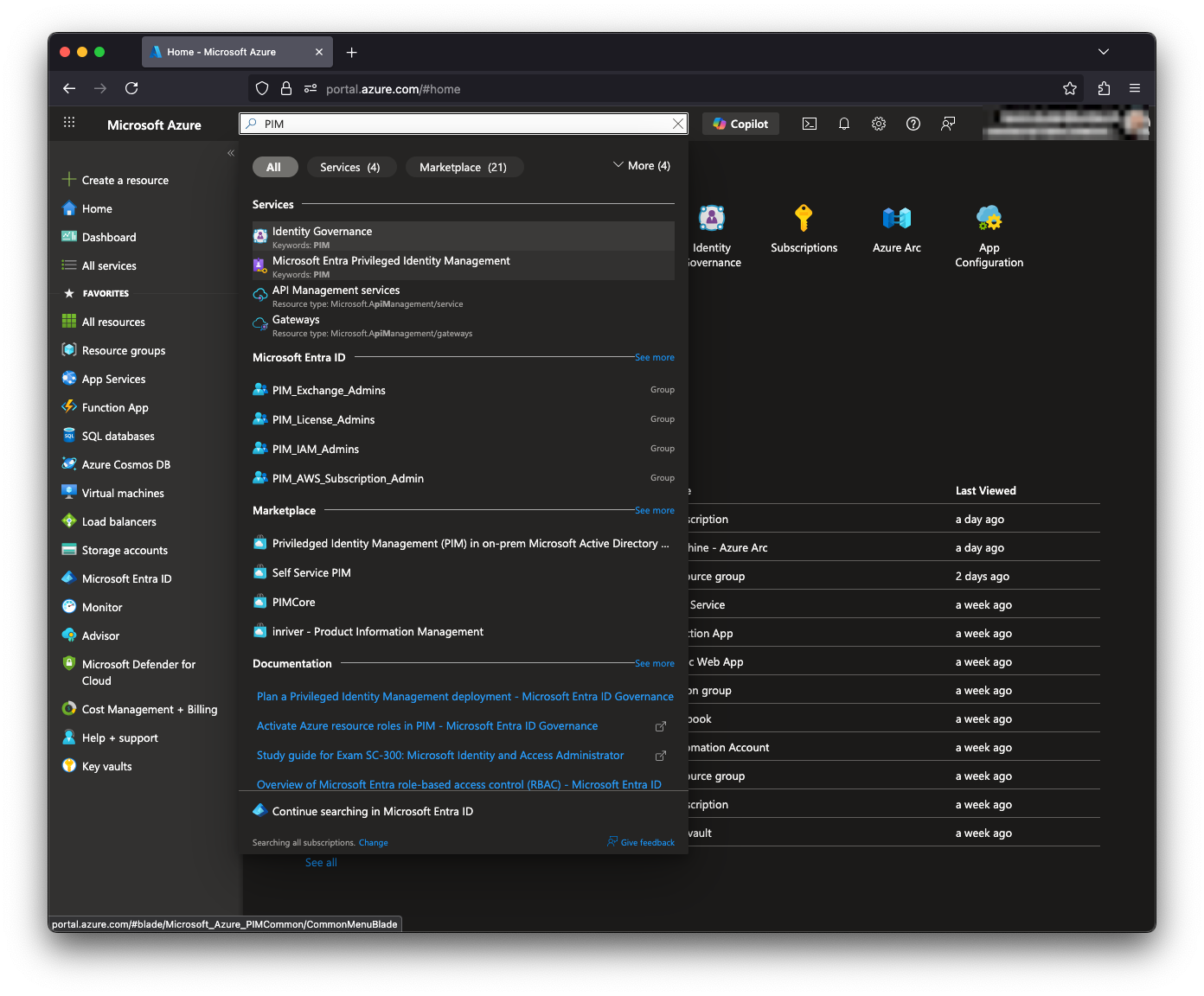
-
In the
PIMmodule, clickMy RolesunderTasksin the left menu.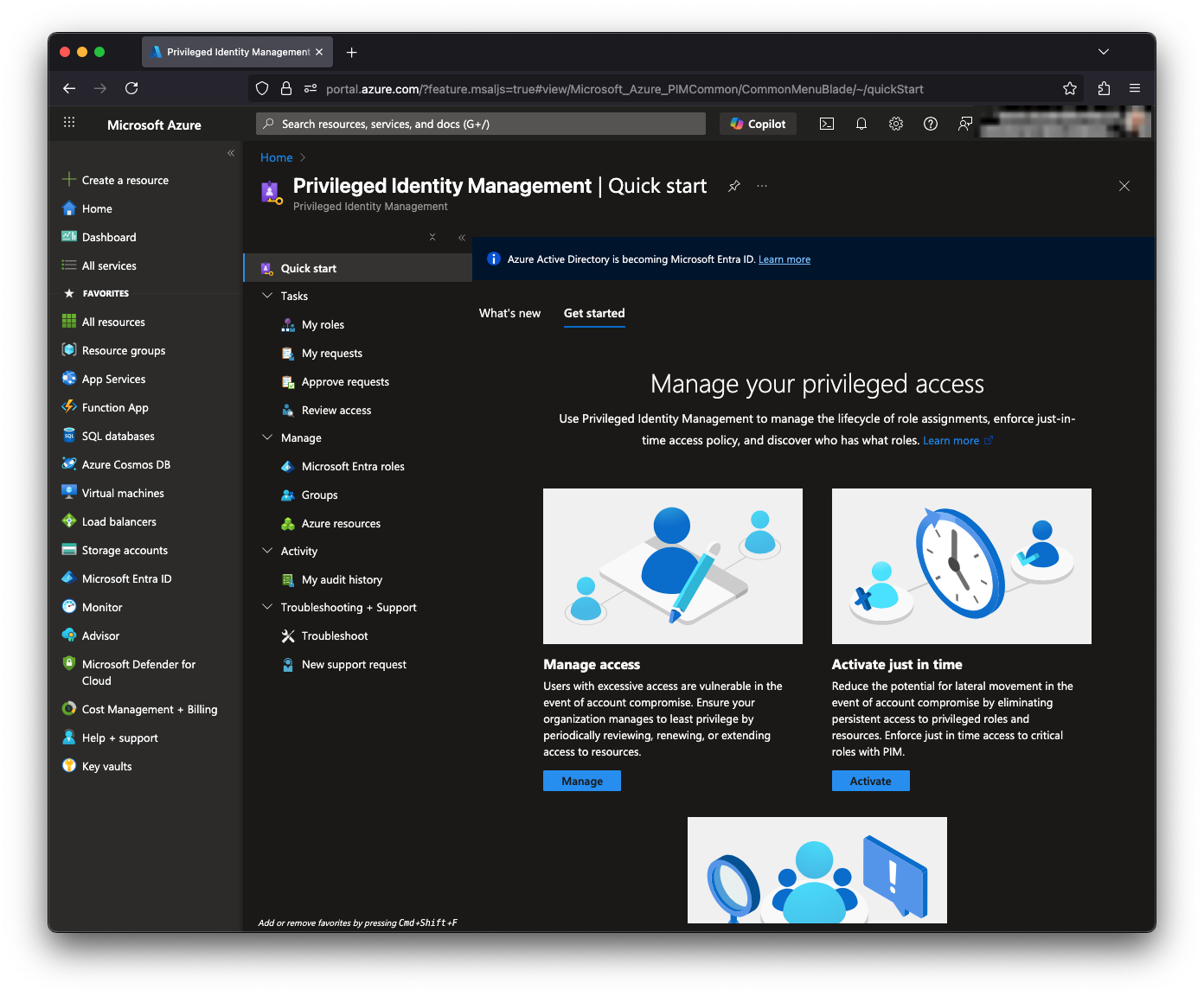
-
Click
Groupsin the left menu.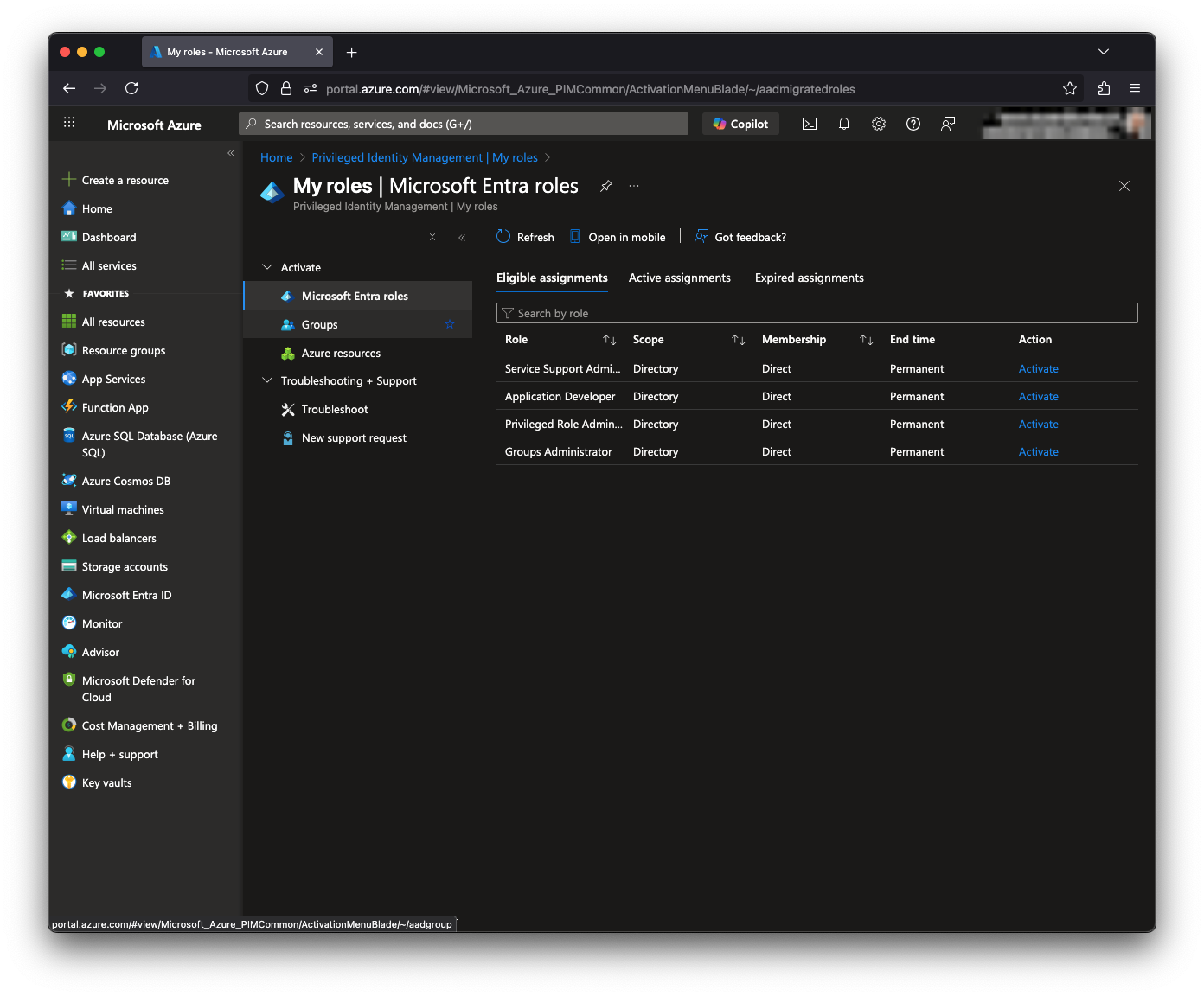
-
In the list of PIM groups, click
Activatefor the group assigned to your subscription.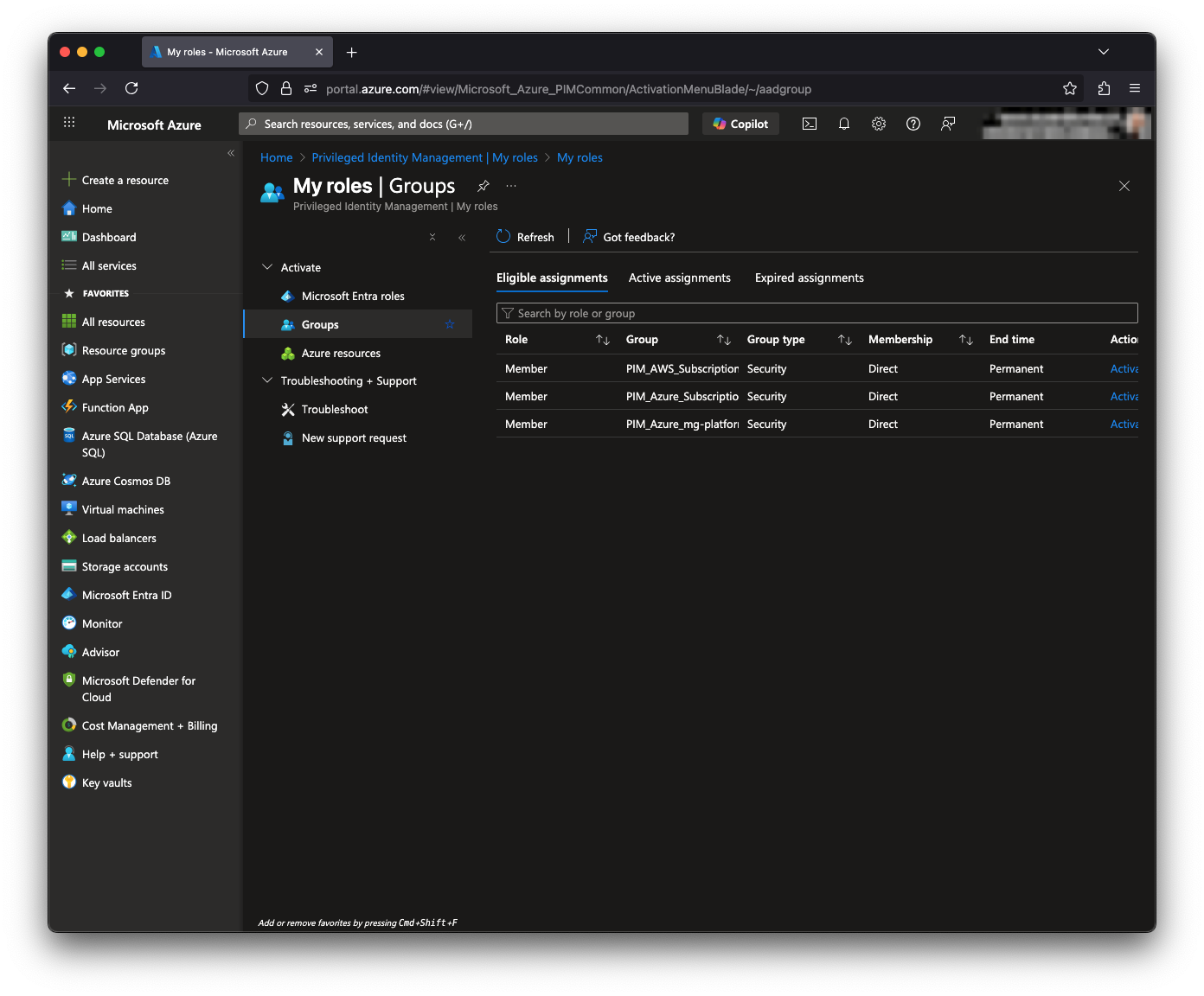
-
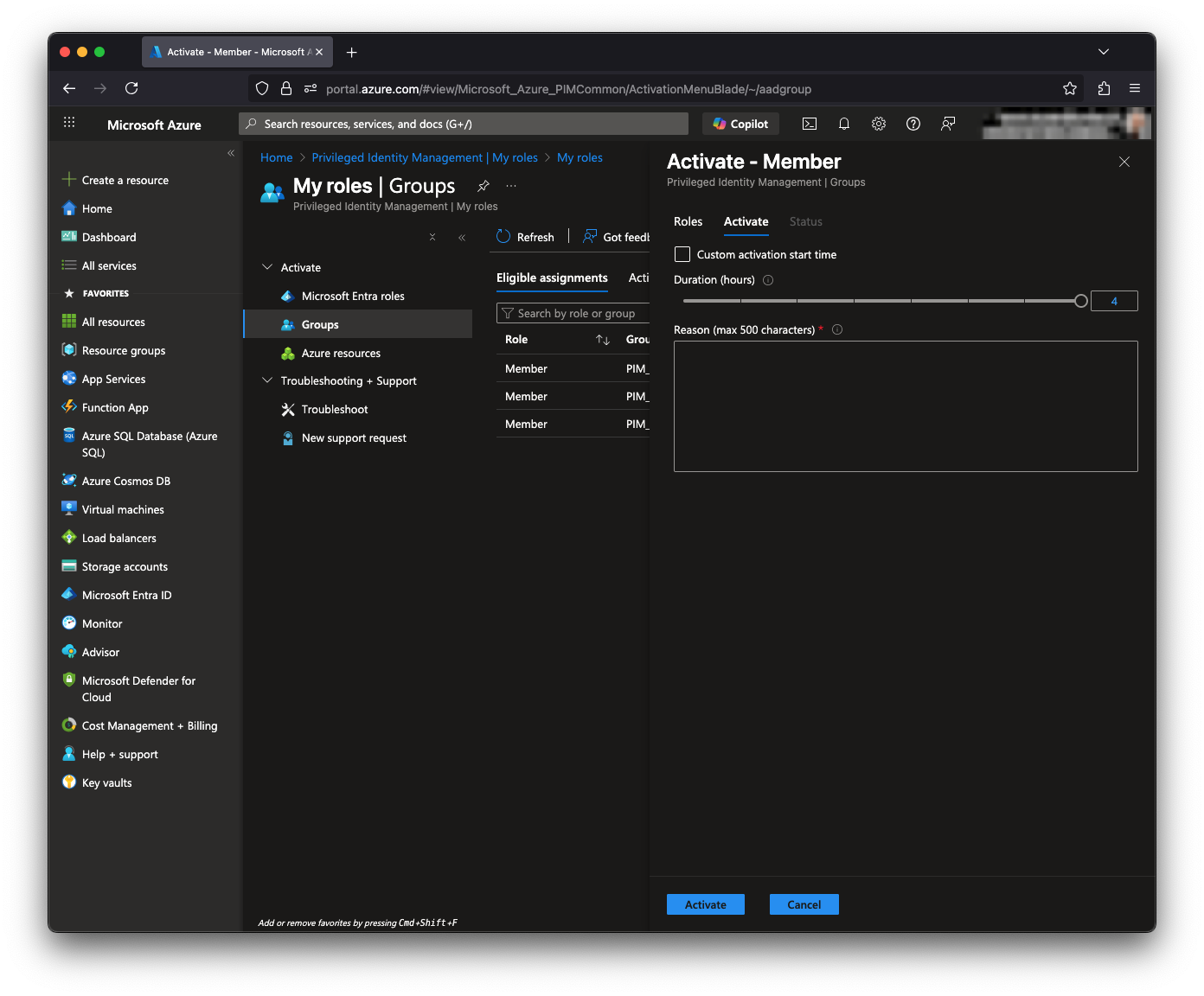
Enter the activation duration and a justification.
Activating PIM for Azure Roles
-
Log in to the Portal.
-
Navigate to the
PIMmodule. EnterPIMin the search bar and click the search resultMicrosoft Entra Privileged Identity Management. -
In the
PIMmodule, clickMy RolesunderTasksin the left menu. -
Click
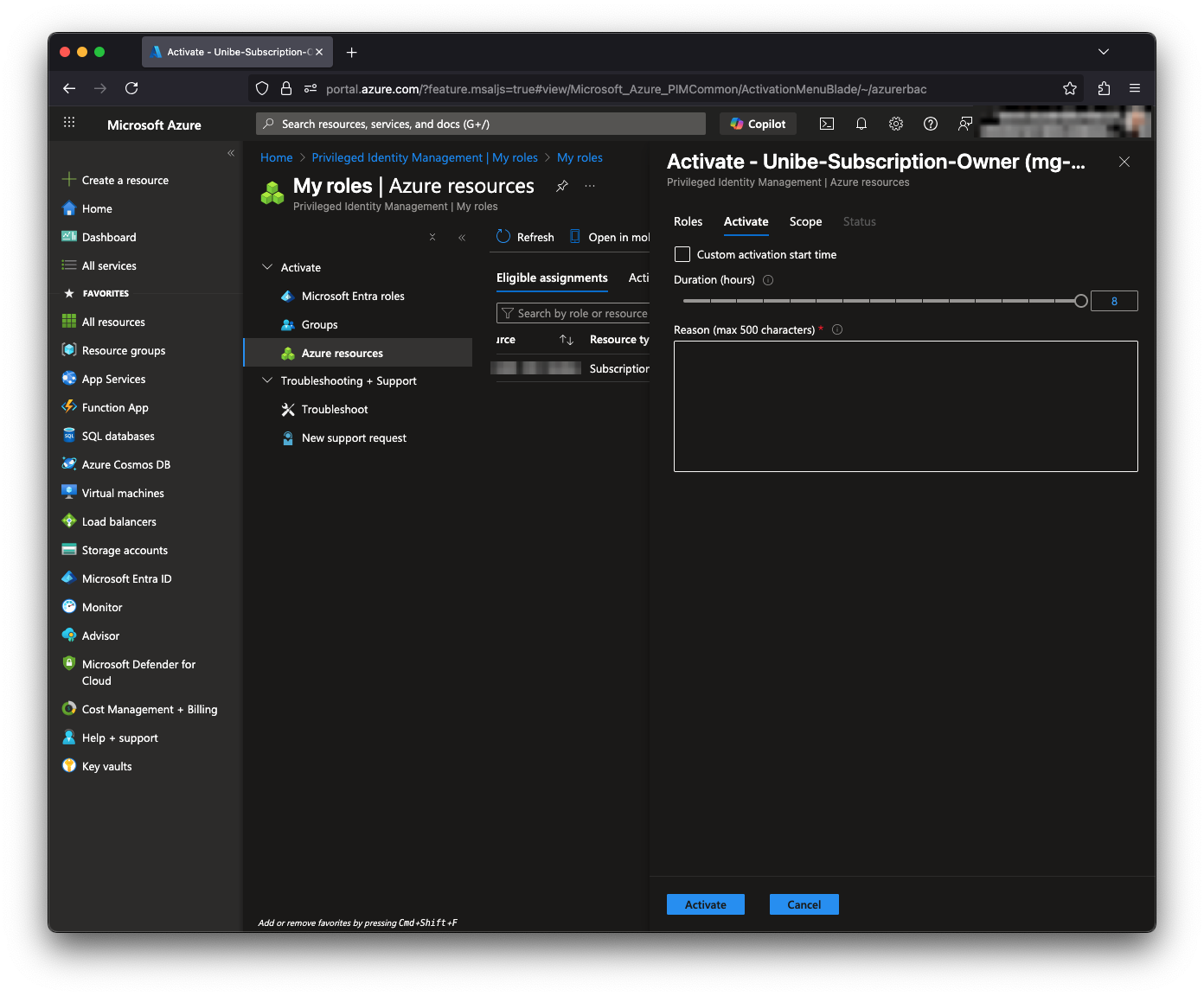
Azure Resourcesin the left menu.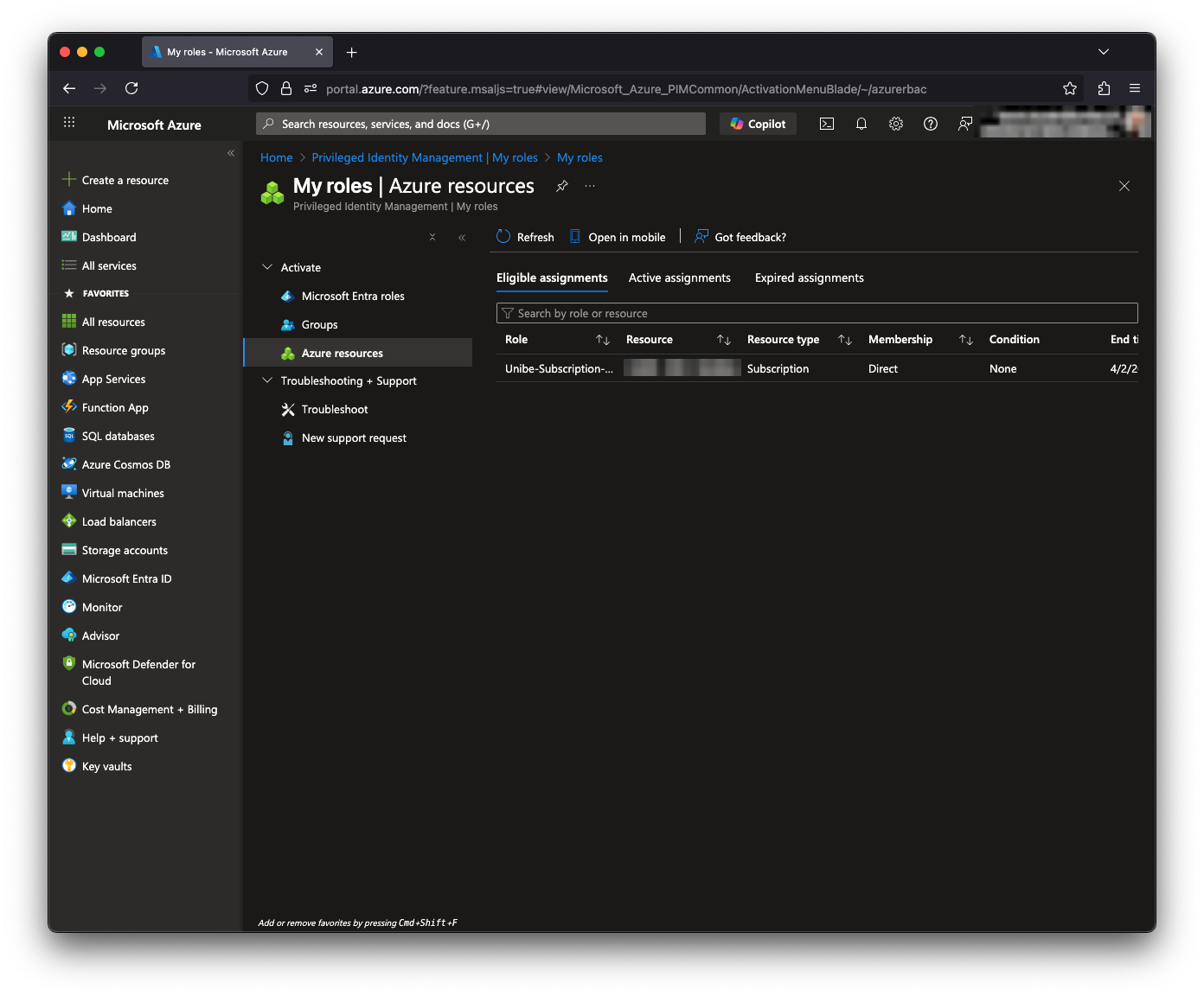
-
All roles you can request are listed. In the last column of the table, there is an
Activatebutton.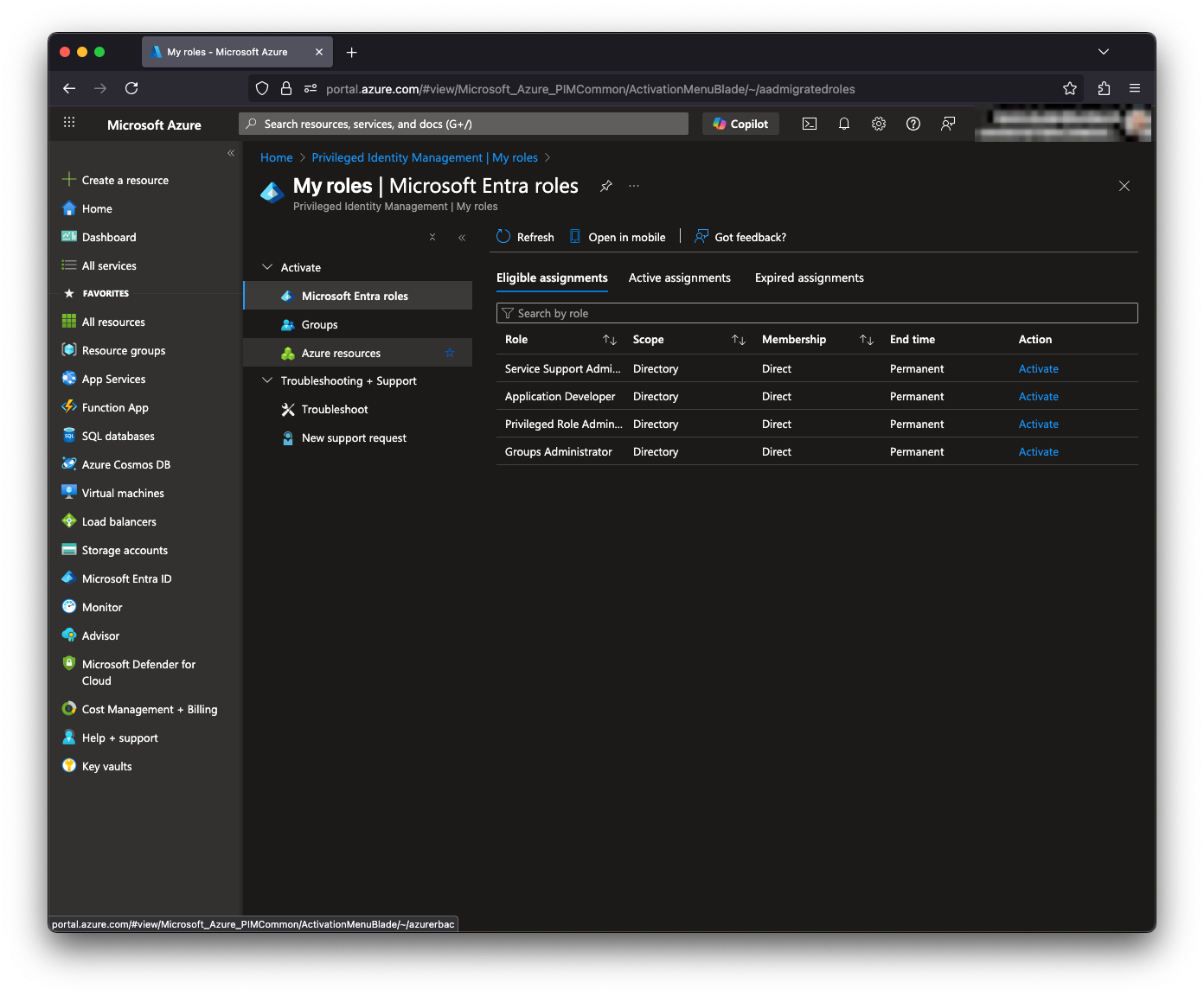
-
Enter the activation duration and a justification.